How to make an AI transition video from two photos
A transition clip needs two frames: where the shot starts and where it ends. The AI generates the motion in between. You don't need to have either photo. Create the first one from a sentence, make the second one from the first, then generate the transition. About three minutes end to end.
Step 1
Create the first frame
Open Text to Image and describe where the shot begins: the subject, the place, the light and where the camera is. Keep the ratio at 16:9 unless you are making a vertical video. The image takes about 20 seconds and the first 3 each day are free.
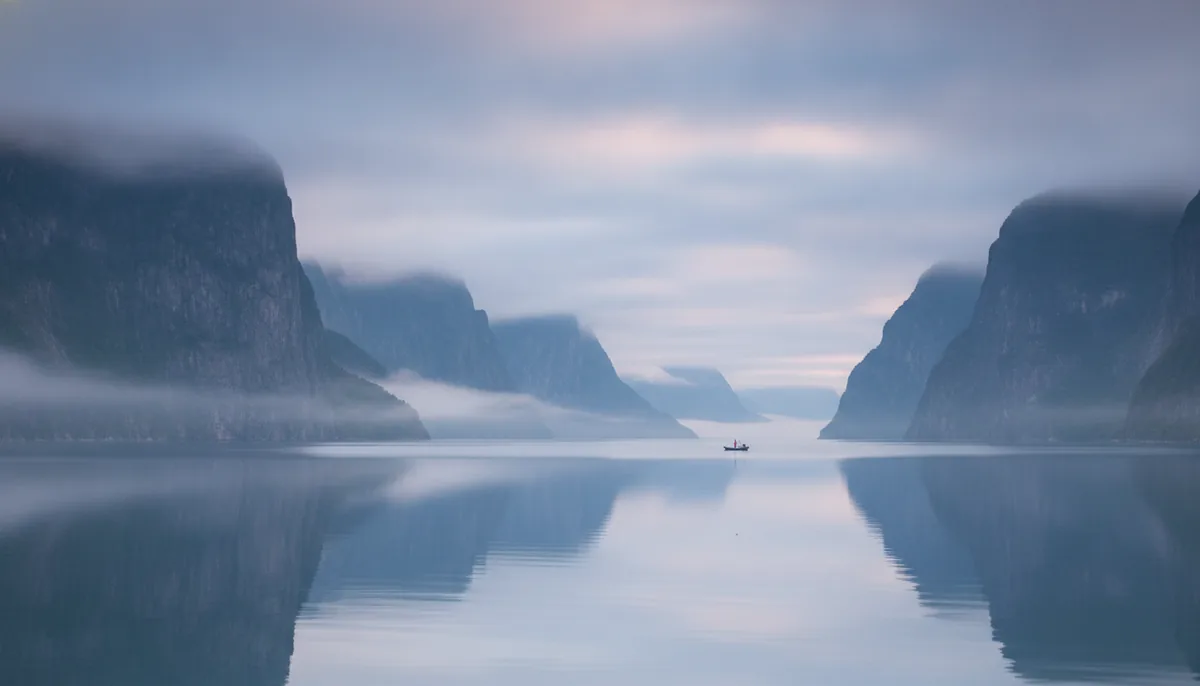
A first frame from one sentence: “Misty fjord at dawn, low clouds between steep cliffs, wide shot”.
Step 2
Turn it into the last frame
Under your image, click Edit. It opens Image to Image with the first frame loaded. Describe only what changes by the end of the shot, and name what should stay:
- “The same scene a few seconds later: the camera has pushed in and the sun has risen, keep the cliffs the same”
- “The same person, now standing on a snowy street at night, keep the face and outfit the same”
This is the step that makes the difference. Two frames that share a subject and a look give a smooth transition; two unrelated photos give a messy one.
Step 3
Generate the transition
Open the Transition Maker. Click From and pick your first frame from “Your images”, then To and pick the second. (Skipped steps 1 and 2? Each slot also has “Create with AI”, and the To slot starts from your From image.) Describe the move and hit Create. It costs 18 credits for a 5-second clip.
Prompts that describe the move
- “The camera pushes forward through the fog as the fjord turns into a mountain ridge at sunrise”
- “A slow whip pan to the right, the city dissolves into the forest”
- “Liquid ink spreads across the frame and settles into the second scene”
- “She turns her head and the background morphs from winter to summer”
Common mistakes
Two unrelated photos
A beach and an office have nothing in common for the model to hold on to, so the middle of the clip turns to mush. Make the last frame from the first one (step 2) and keep the subject, framing or colours in common.
Different shapes
A tall phone photo and a wide landscape force the model to stretch one of them. Keep both frames the same ratio. Frames made in step 1 and step 2 already match.
Describing the pictures instead of the move
The model can already see both frames. The prompt is for what happens in between: the camera move, the speed, the kind of change.
FAQ
- What does it cost?
- The images are free for the first 3 each day, then 4 credits each. The transition itself is 18 credits for a 5-second clip. Failed generations cost nothing.
- Can I use my own photos?
- Yes. Upload them into the From and To slots instead of creating them. Only use photos you have rights to, with consent from anyone recognisable in them.
- How long is the clip?
- 5 seconds, which is the usual length for a transition between two shots in an edit.
- Why does the last frame need to come from the first?
- The model generates the frames between your two images. The more the two share (the same person, the same place, the same light), the more it can move smoothly instead of cutting or melting.
Make your first transition
Start from a sentence. No photo needed.